
Live wallpaper
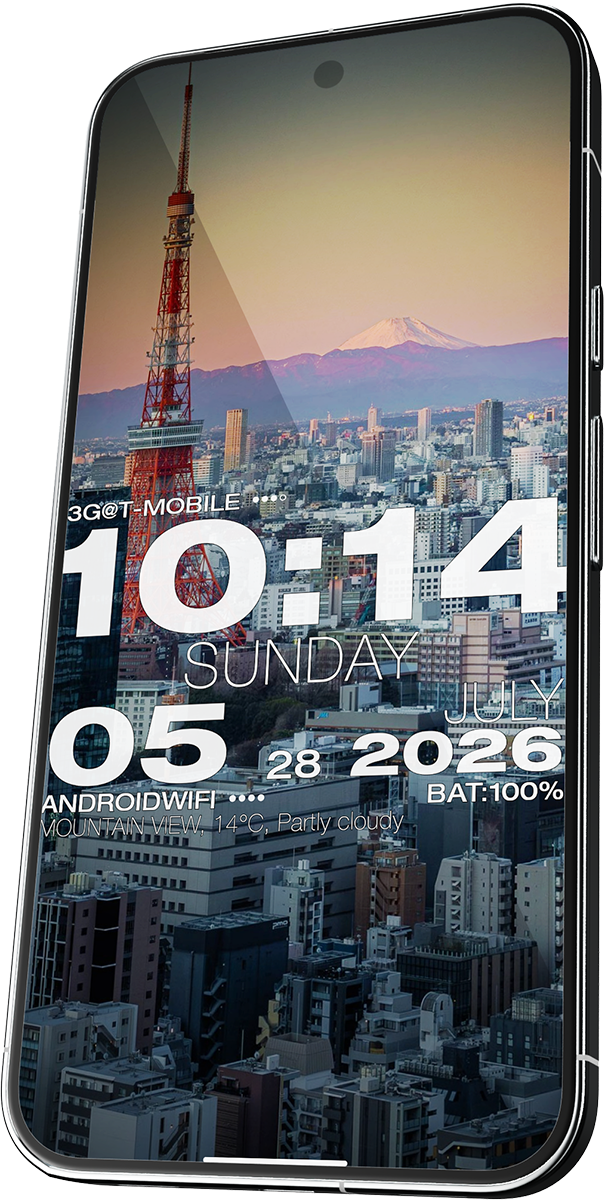
Apply WP Clock as your home (and optionally lock) screen wallpaper. Full backgrounds, patterns, and bounce animations when data updates.
WP Clock is a typographic live wallpaper and desk clock for Android — time, date, and three status rows you configure: network, Wi‑Fi & battery, weather, sunrise, moon, golden hour, air quality, storage, countdown, and more. Add photo backgrounds, bounce animations, online presets & background packs, and two optional home-screen widgets.
Android 12 or newer · 7-day free trial · One-time Premium purchase, no subscription
New in 2.0
Pick what each info line shows and put them in any order — mobile network, Wi‑Fi & battery, current weather, sunrise & sunset, moon phase, golden hour, air quality, free storage, or a countdown to any date you name. Status rows can show crisp icons on the live wallpaper and image widget, with Thin or Medium font for all small lines.
The clock block itself — time, weekday, date — stays the bold stack you already know. Upgrading from 1.x changes nothing until you open Settings → Status rows.
Your photos
Drop in your own backgrounds and drag to position them — independently for portrait and landscape. The typographic stack stays readable over skylines, flags, or whatever you put behind it.
How you use it
Same look and typography — different surfaces. Pick what fits your routine.
Apply WP Clock as your home (and optionally lock) screen wallpaper. Full backgrounds, patterns, and bounce animations when data updates.
Open standalone mode for a fullscreen clock while the app stays open — great on a stand or night table, with optional keep-awake and full brightness.
Two transparent clocks for your launcher (Android 13+): an image widget that matches your wallpaper typography, or a live-text widget with a native ticking clock. Compare them · FAQ
Android 13+
Same typographic stack and colors — two ways to render it on your launcher. Default size is 4×2. Tap Add widget on the main screen to choose, or find both in your launcher’s widget picker (each has its own description).
Image widget · best typography match
Draws your clock as a transparent image using the same fonts, theme colors, and optional outline strokes as your wallpaper. Closest visual match when you care about typography.
Live text · clock always current
Uses native TextClock and system fonts (Roboto on most phones). The minutes tick on your home screen without waiting for the app to redraw.
Home-screen widgets are not live wallpapers. Neither widget can show photo backgrounds, dynamic patterns (dots, rings, etc.), or bounce/wiggle animations — use live wallpaper or standalone for those.
Online presets
Country flags, seasonal themes, and localized layouts — browse a growing catalog, filter by region, and apply with one tap. Pull to refresh when you’re online.
Save your own presets and let them rotate automatically with Premium.
Under the hood
Everything is tuned in Settings — text, backgrounds, layout, animations, and presets.
Background packs
Premium unlocks online photo galleries — pick thumbnails, download once, and use them like any local background. Position each image for portrait and landscape.
Deep settings
Layout, backgrounds, status rows, weather, presets — collapsible sections keep the long list of options scannable. Every choice feeds the same typographic stack on wallpaper, standalone, and widget.
Help
Quick answers to the things people ask once they start customising. For every option, see the full settings reference.
Version 2.0 adds three configurable info lines below the date. Open Settings → Status rows to choose what each slot shows and drag them into any order.
Available rows include mobile network, Wi‑Fi & battery (one combined slot), current weather, sunrise & sunset, moon phase, golden hour, air quality, free storage, and a countdown to any date you name. Empty slots collapse so the stack stays tight.
Premium (included in the trial) unlocks the weather bundle: sun, moon, golden hour, air quality, and countdown. Storage is free. Upgrading from 1.x keeps your old layout until you edit status rows.
Status rows can show icons on the live wallpaper and WP Clock image widget. The WP Clock Live widget shows the same data as text only (system fonts; sunrise/sunset use ↑↓ arrows).
Global style applies one text color, opacity, and outline to every visible row — fast and cohesive. Turn it on under Settings → Global style.
Per-element styling lets each row (time, date, status rows, etc.) have its own color, size, font, and outline. Available with Premium after the trial. When global style is on, element screens show “Using global style” and the global values win.
Layout (alignment, padding, vertical offset) is separate: wallpaper and standalone each have their own block layout; row spacing is shared everywhere including the widget.
Both show the same rows, colors, and spacing. Pick based on what matters more on your home screen:
You can place one or both. Tap Add widget in the app for a chooser, or long-press the home screen → Widgets and read each widget’s description in the picker. Default placement is 4×2.
Android home-screen widgets are not live OpenGL surfaces. Neither WP Clock widget renders photo backgrounds, dynamic patterns, or bounce/wiggle animations — those need live wallpaper or standalone desk-clock mode.
Both widgets show a transparent typographic clock using your colors and row spacing, plus whatever status rows you configured. WP Clock draws that stack as a bitmap; WP Clock Live uses native text for a live-ticking clock.
Widgets require Android 13 or newer. On Android 12, live wallpaper and standalone still work. Behaviour may vary slightly by launcher and device.
Android’s widget system only allows system font families in live TextView / TextClock remote views — custom fonts bundled in the app are ignored. This is a known platform limitation, not something WP Clock can override.
That’s why we offer two widgets: WP Clock renders typography as an image (full font fidelity), while WP Clock Live trades custom fonts for a clock that updates natively on screen.
WP Clock ships with a growing online preset catalog — country flag looks, seasonal themes, and more. New presets are added regularly on wpclock.exquinet.com.
Online presets are free for everyone. Saving your own custom presets and preset rotation are Premium features (included in the trial).
Photo and flag packs are a Premium feature (available during the free trial too). The catalog keeps growing — flags, travel photos, and more:
Worth checking back from time to time — new packs are added regularly.
Open Settings → About WP Clock (or the app info dialog from the main menu), then tap Send feedback. You can describe a bug, a translation issue, or a feature idea — optionally attach a screenshot.
Feedback goes to the developer via wpclock.exquinet.com. Screenshots may show your wallpaper; avoid personal photos if you prefer.
Both use the same theme, but you can position the text block independently:
The widget always uses a fixed centered layout tuned for common widget shapes — it doesn’t follow wallpaper or standalone layout settings. You can place WP Clock (image) or WP Clock Live (native text); see Two home-screen widgets.
Assign Current weather to a status row slot (Premium / included in the free trial) under Settings → Status rows. Choose a city — or enable Use current location for “where you are” updates.
You’ll get a clean line like BERLIN, 22°C, Partly cloudy. Conditions are translated to your device language automatically (8 languages supported).
Pick °C/°F and how often it should refresh (from 30 minutes up to daily). WP Clock shows when it was last updated, caches the result, and lets you manually refresh in standalone.
Sunrise, moon phase, golden hour, and air quality also need a weather city (or current location) so WP Clock can fetch astronomy and AQI data from wpclock.exquinet.com.
Battery-friendly: current-location weather uses Android’s battery-optimized location APIs and requests an approximate location only when refreshing — no continuous background tracking.
Only if you assign Wi‑Fi & battery to a status row. Android requires Location permission (and the system Location switch to be on) before apps can read the Wi‑Fi network name (SSID).
WP Clock reads the network name for display only. Weather can use a manually chosen city, or (optionally) your current location only when refreshing weather — not continuous background tracking. Deny Location and the Wi‑Fi name simply won’t show (or pick a different status row).
Only if you assign the mobile network status row. The app reads your operator label and network type (e.g. 5G@Carrier) — not phone numbers, contacts, or call logs.
Pick a different status row or deny permission and that line is omitted from the display.
No. Premium is a one-time purchase on Google Play. Pay once, keep it on your Google account, restore after reinstall. Promo codes redeem through Google Play too.
New installs get a 7-day trial with all Premium features. After expiry, you can unlock Premium or continue on the free tier with a subset of features.
The clock, live wallpaper, standalone mode, and all saved settings work offline. Internet is needed when you browse or download online presets or background packs, refresh weather (or when the automatic interval elapses), send feedback, or buy or restore Premium through Google Play.
Cached weather readings keep showing offline until the next scheduled refresh.
Your photos and theme configuration are stored on your device — not uploaded to our servers.
Bounce and wiggle animations run on the home screen live wallpaper. On the lock screen, the wallpaper shows your typography and backgrounds but skips bounce animations (Android battery and rendering constraints).
Premium users can optionally export a static lock-screen snapshot when the theme changes, so lock and home can still match visually.
Up to three local photos on the free tier. Premium removes the limit. Online background packs and background slideshow are Premium features (included in the trial).
The online preset catalog (country flags, seasonal looks, and more) is free — browse and apply anytime in Settings → Presets.